

IoT Field Notes.
Engineering notes, platform updates, practical guides and integration patterns from the Kajeet IoT Connectivity team.

AI & Agents · July 8, 2026 · 4 min read
Start Read-Only: The Lowest-Risk Way to Bring AI Into Your Operations
The adoption strategy nobody argues with: give the AI eyes before hands. Why a read-only first month answers every stakeholder objection at once, and what to do during it.
Read post →
AI & Agents · July 3, 2026 · 11 min read
Chat or Dashboard? An Honest Guide to When Each One Wins
When the Sentinel dashboard wins, when the Sentinel MCP server wins, and when to have Claude build you a dashboard on the spot. A task-by-task guide.
Industry · July 2, 2026 · 11 min read
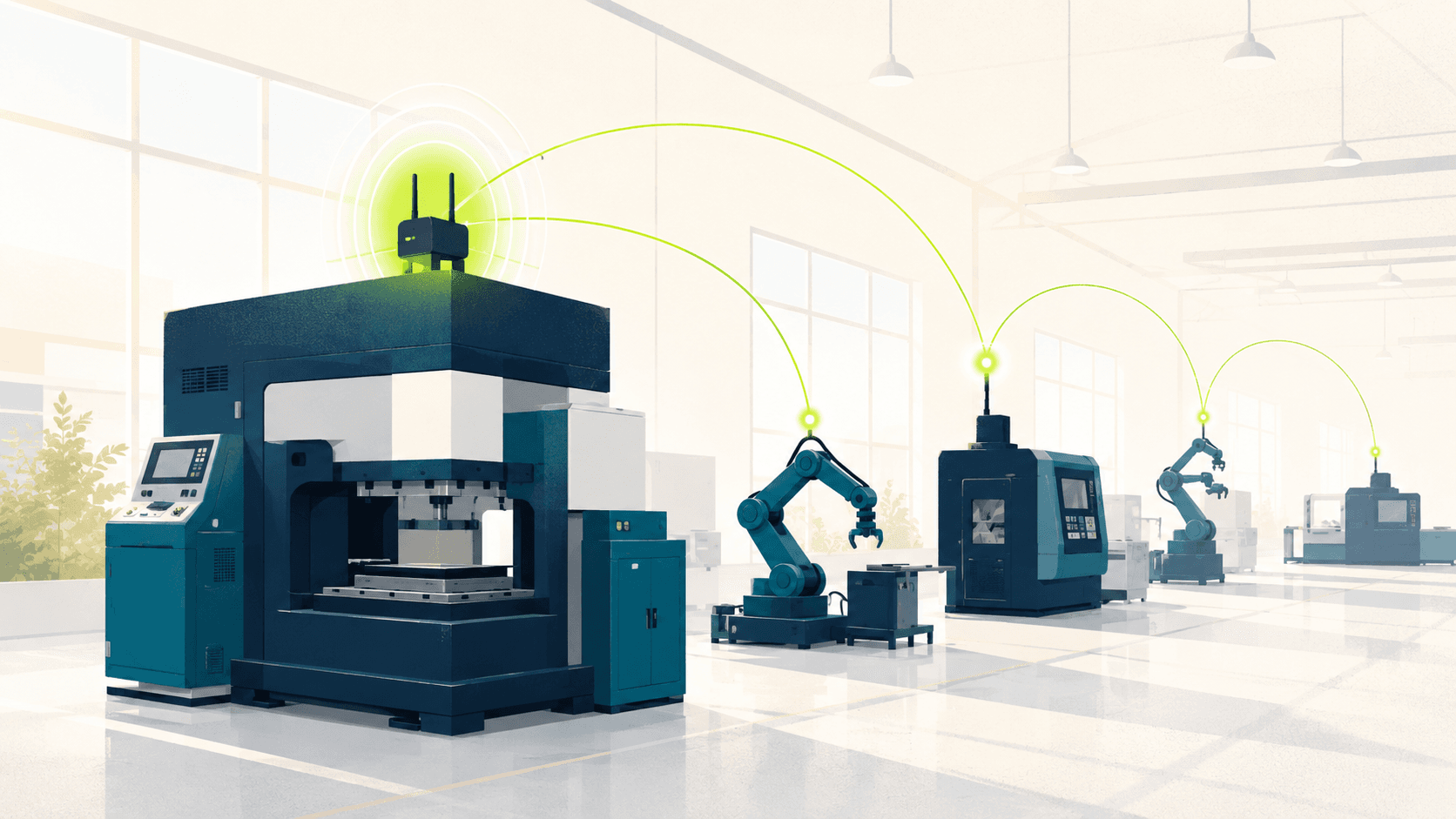
Manufacturing IoT Connectivity Management with Kajeet SentinelOS
How manufacturers use Kajeet SentinelOS to manage cellular IoT deployments with AI agents, REST APIs, and a CLI: faster sensor triage, ERP-driven SIM provisioning, and SmartFailover for production lines.

AI & Agents · May 16, 2026 · 4 min read
Connecting Sentinel MCP to Claude.ai in 5 Minutes
A setup guide for Sentinel GUI users. Connect your account to Claude.ai with your existing login, read fleet state from a chat, and take action with a safety net underneath.
Platform · May 15, 2026 · 3 min read
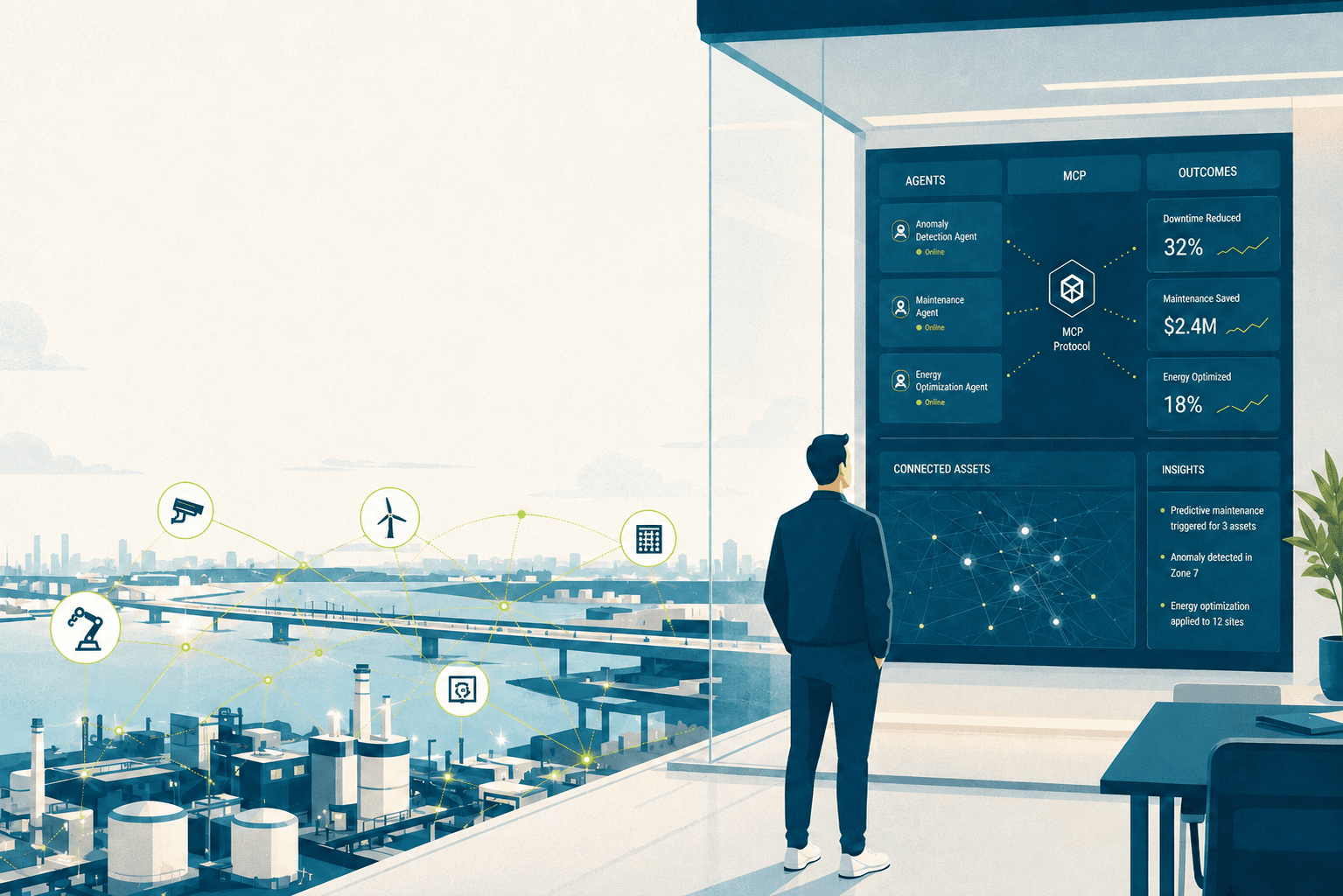
Beyond the Connectivity Console: Agents, MCP, and the Future of IoT Ops
The connectivity dashboard had a good decade. The next era of IoT ops is headless, agent-driven, and built on MCP. Specific use cases for Sentinel.