
If you spend your day in the Sentinel web console, flipping between Devices, Usage, Web Activity, and a support tab, there is a version of that same work that lives entirely inside a Claude.ai chat. You ask a question and Claude reads your account to answer it. You tell it to suspend a device and it walks the change through a safety preview before anything actually happens. Your account permissions follow you in unchanged. That is what Sentinel MCP does, and the connection takes about five minutes.
MCP stands for Model Context Protocol. The short version: it is the cable that lets Claude.ai read your Sentinel account and run actions on your behalf, using your own login. Claude never gets a master key; it gets a passenger pass that expires when you sign out and respects every role and permission you already have in the GUI today.
What you need before you start: an active Claude.ai account on a tier that supports custom MCP connectors, a Sentinel login you would normally use to sign into kajeet.dev, and a browser. That is the entire prerequisite list, since nothing gets installed and there is no API key to manage. You sign in once and it stays connected for the life of your Claude session.
Open Claude.ai. In the settings menu, go to Connectors (it may be labeled MCP Servers depending on your tier). Click Add Custom Connector. In the URL field, paste this exactly:
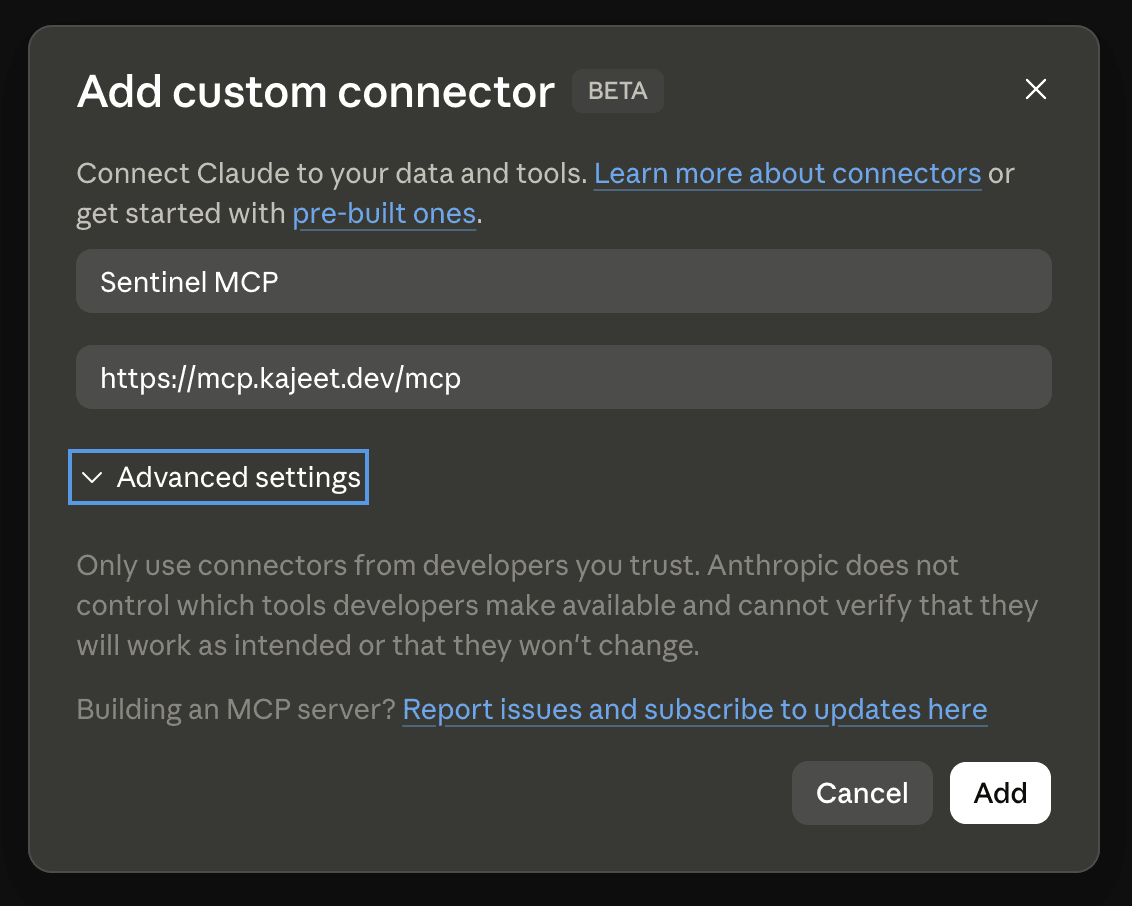
Give it a name like Sentinel so you can find it later, then click Add.
Claude will pop a sign-in window. This is the same login you use for the Sentinel console. Enter your username and password, complete MFA if your account has it on, and the window closes. Back in Claude, your new Sentinel connector will show as Connected. That is the whole setup.
Now the part that matters. Start a new chat and type this prompt:
Claude calls a small Sentinel tool called auth_whoami and comes back with your account name, your role, and the corp ID you are scoped to. Two quick checks here: the account name should be the one you meant to work in, and the role should be the one Sentinel knows you have. If both are right, you are in.
From here, treat it like a fast and patient colleague who has already memorized every Sentinel screen. Some prompts to try:
Each of those is a click tour through the GUI compressed into a single sentence.
If you manage more than one Sentinel account (multiple districts, multiple customer corps, an MSP setup), Claude can switch between them in the same chat. Try:
The next question you ask runs in the new account, without another login or any page navigation.
Most of what you will do in the first few weeks is read-only, and the read surface is wide. It covers device inventory and health, usage analytics at the account and per-device level, GPS device locations and route history, Cradlepoint and SmartFailover router telemetry, web activity reporting, and your ServiceNow support cases and KB. Every one of those reads is gated by what your Sentinel role actually allows.
When you are ready for write actions, the workflow is built around a safety pattern called preview-then-confirm. Ask Claude to suspend a device and nothing gets suspended yet. You get back a preview: the device that would be affected, its current state, the change that would happen. You read the preview, then send:
and only then does Sentinel execute. Activations, suspensions, SmartSIM profile swaps, and support case changes all run on the same pattern, which makes it very hard to do something irreversible by accident.
When something does not work, the first thing to do is ask Claude to run a diagnostic:
That calls auth_diagnose, which checks your session, your token freshness, your account context, and whether the server is reachable. Nine times out of ten it identifies the issue itself, usually a stale session or a multi-account context that drifted.
A few things worth knowing as you settle in. Every write action you run through Claude lands in the Sentinel audit log under your user, the same as if you had done it in the console. Multi-account switches are scoped to the chat, not your global Sentinel session, so flipping accounts in Claude does not change the account on a GUI tab you have open in another window. And if you close Claude and reopen tomorrow, the connector stays linked, but a fresh sign-in may be required if your Sentinel session expired overnight.
Sentinel’s web console is not going anywhere. There are still places where the GUI is the right tool: long-form configuration screens, batch uploads, and anything that benefits from a visual layout. What changes is that a question that used to take six clicks across two tabs now takes one sentence.
The whole connection takes longer to read about than to actually do. Open a second tab, sign into Claude.ai, paste the URL, and ask who you are connected as. Everything after that gets faster.